
Lightbox user guide
Lightbox is a viewer for geophysical grids that runs in your web browser. Open a magnetic, gravity, radiometric or elevation grid, bring out its structure with stretches, colour ramps and a sun you can move, draw your interpretation over it, and take that back to your GIS. Your files are read on your own computer and never uploaded.
This guide works through the common tasks. For the keys, see Keyboard shortcuts; if something does not look right, see Troubleshooting.
Getting started
Open Lightbox at nextmaps.com.au/lightbox. Then either:
- drop grid files anywhere on the map, or click Open (Ctrl+O) and pick them. Choose several at once and each becomes a layer.
- or, with nothing to hand, choose Samples > Magnetic set for a synthetic RTP, TMI, 1VD and 2VD with a Copernicus elevation model.
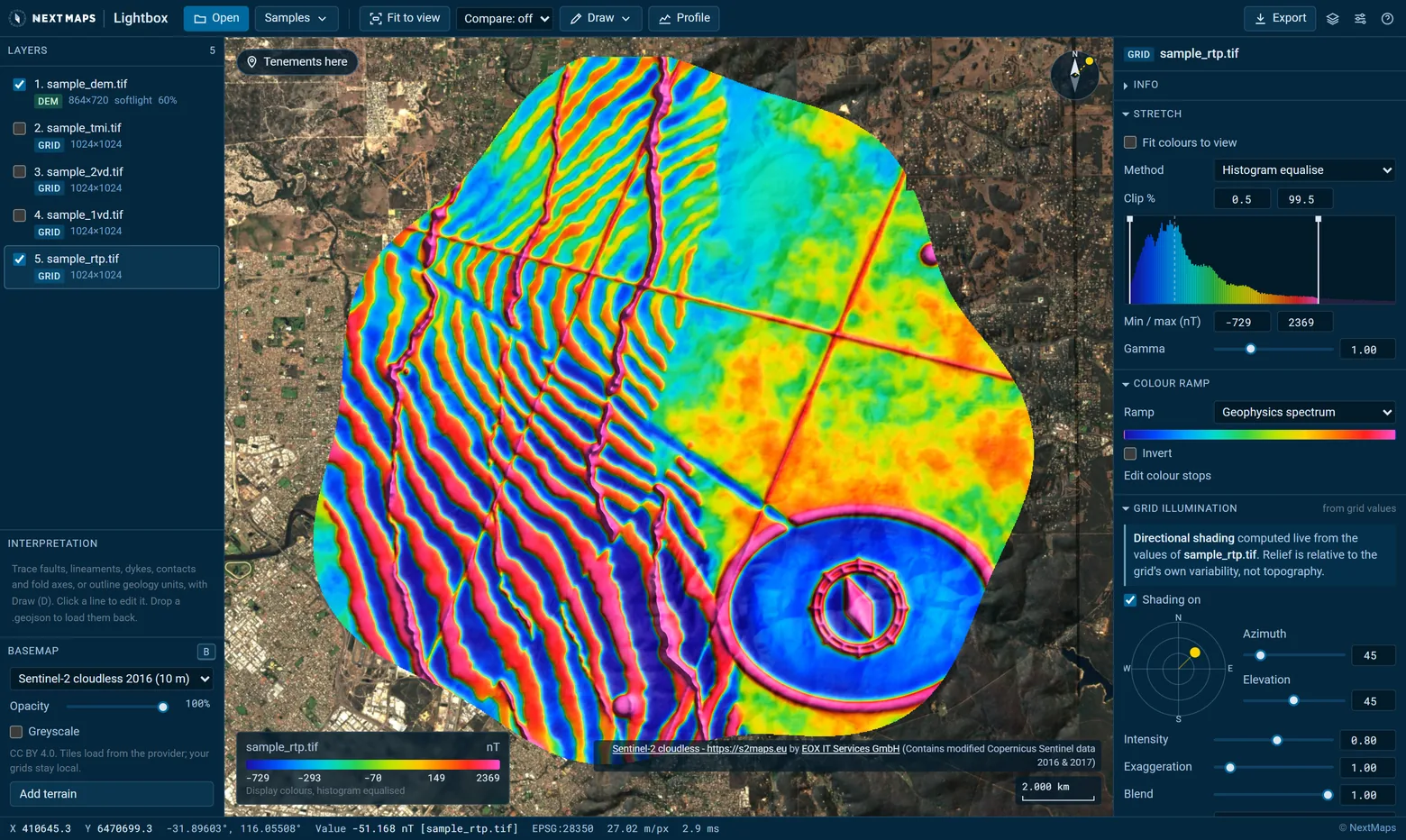
The workspace has three parts:
- Left panel: your layers, your interpretation and the basemap.
- Map: drag or use the arrow keys to pan, the wheel or + and - to zoom. F fits the map to the active layer; double-clicking a layer does the same.
- Right panel: the settings of the active layer, from its file details to its colours and shading.
The status bar along the bottom shows the coordinates and the stored value of the cell under the pointer, the coordinate system and the ground distance per screen pixel. L and P hide and show the two panels when you want the whole screen for the map.
Do I need an account?
Anyone can open grids and look at them as they first appear. A free NextMaps account unlocks the rest: changing the stretch, colours and shading, comparing layers, terrain, the WA statewide data, drawing, profiles, derivatives, share links and exports. When you reach one of those, Lightbox offers the sign-up. It opens in a dialog, so the grids you have open stay loaded.
Your work is saved as you go
Lightbox saves your session in this browser as you work: the grids you opened, their display settings, the view and your interpretation. Close the tab or reload, and next time you open Lightbox it asks Pick up where you left off? Press Restore and everything comes back, grids included, without opening the files again.
- It keeps your last few sessions, so opening a share link or a colleague's grid never overwrites the work before it. Sessions with an interpretation are kept longest. When there is more than one, pick it from the list.
- WA statewide data and terrain are loaded again, and 1VD and tilt layers worked out again, rather than stored.
- Grids over 500 MB, or past about 1.5 GB in all, are remembered by name only: Restore asks you to open them.
- It lives in this browser on this computer. A different browser, a private window, or clearing the site's data starts afresh. To keep work for good, move it to another computer or hand it to a colleague, save a project file.
- If you leave before your latest lines are saved, the browser asks first.
- Forget them, under ?, deletes the saved sessions and grids from this browser, for example on a shared computer.
Opening your files
| Format | What to open | Notes |
|---|---|---|
GeoTIFF (.tif, .tiff) |
The file | Including Cloud Optimized GeoTIFFs, tiled or striped, with Deflate, LZW, PackBits, JPEG or LERC compression. |
ER Mapper (.ers) |
The .ers header and its data file, together |
The data file usually has the same name with no extension. Any integer or floating-point cell type, one band or several. |
Geosoft / Oasis montaj (.grd) |
The .grd, plus its .grd.xml if there is one |
The .grd.xml holds the coordinate system. Compressed and rotated grids open; a rotated grid is resampled to north up. |
Coordinate system files (.prj, .aux.xml) |
Together with their grid | Read when the grid itself does not say what system it is in. |
An earlier interpretation (.geojson) |
Drop it on the map | Your lines and polygons load back in so you can carry on. |
Pick or drop all the files for a grid at once and Lightbox pairs them up by name.
What becomes of each file:
- A single-band grid of numbers becomes a grid you can stretch, shade and interpret. Lightbox keeps the original values: the readout always shows what is stored in the file, whatever the display is doing.
- An RGB, RGBA or palette image is shown as it is, as imagery. Stretches and shading need a grid of values.
- A multiband raster shows band 1, with a Band picker under Info to switch.
- A DEM is recognised as elevation and shaded as terrain. If Lightbox guesses wrong, change Info > Treat as between Geophysical grid and Elevation (DEM).
The Info section at the top of the right panel lists the file's size, data type, NoData value, coordinate system, cell size, extent, range, mean and standard deviation, units, and any warnings about the file.
What Lightbox does not open
- Surfer and netCDF grids that also use the
.grdextension. Save them as GeoTIFF first, from Surfer or with QGIS. - ECW and MrSID images. Their decoders are licensed for desktop software only, so a browser cannot read them. They are usually a coloured picture of a grid rather than its values anyway: ask for the grid itself, or convert the image to GeoTIFF in QGIS (Raster > Conversion > Translate), which opens as imagery.
- Every cell of a very large grid. Grids of more than 40 million cells open as an overview (1:2, 1:3 and so on, with values sampled rather than averaged), and a message says so. To work at full resolution, crop the grid to your area first.
When a grid is in the wrong place
The first grid you open sets the workspace's coordinate system. Grids opened after it in other systems are resampled on the fly to line up with it, and the basemap is reprojected to match.
If a grid does not say which coordinate system it is in, or says it in a way Lightbox does not recognise, it opens in its own coordinates with a message, and the basemap, the latitude and longitude readout and reprojection are off for it. To fix it:
- Look for a side file you left behind: a
.prj, an.aux.xmlor a Geosoft.grd.xml. Open it together with the grid. - Or assign the system yourself. Open Info on the right; it opens by itself when a system is missing. Under Assign CRS, pick from the common systems, or search by name or EPSG code: mga 51, nad27 13n, sirgas 23s or 28351 all work. If it is the first layer, the workspace takes that system.
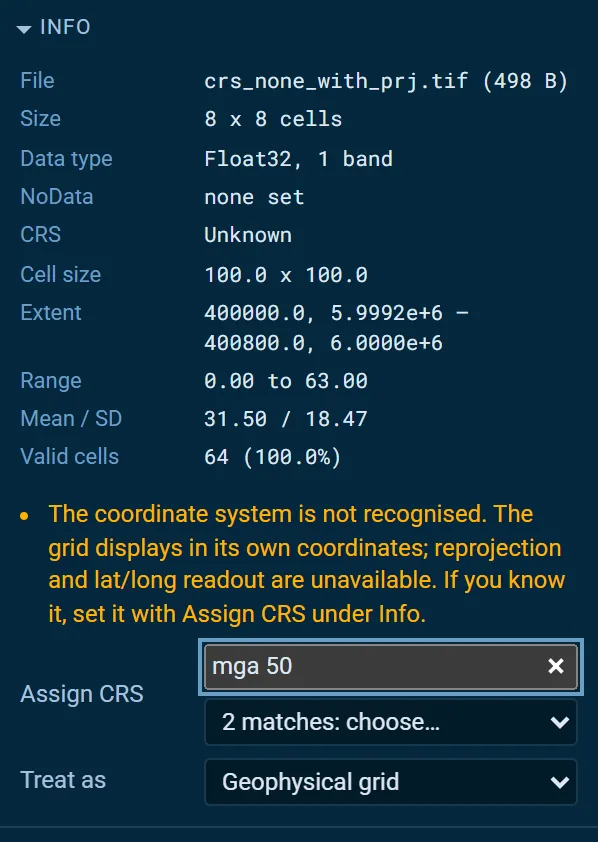
Lightbox knows 5,306 EPSG coordinate systems, each checked against the PROJ library to within a metre, from MGA and AMG to every UTM zone, NAD27 and NAD83, ETRS89, SIRGAS, the Gauss-Kruger zones and the southern African Lo grids. It also reads systems written as WKT in a .prj, a GDAL .aux.xml, a Geosoft .grd.xml or a GeoTIFF from ArcGIS, and user-defined GeoTIFF projections.
A grid with no georeferencing at all is shown in pixel coordinates and cannot be lined up with anything. A few datums with no published transformation to WGS 84 (Xian 1980, Beijing 1954) open in their own coordinates.
Bringing out the structure
Everything in this section changes the display only. It is all worked out live from the grid's own values, and nothing is written back to your file.
Stretch and colour
- Stretch > Method: Histogram equalise (the default), Percentile clip, Standard deviation, Min-max or Manual. For a manual stretch, drag the two handles on the histogram or type the minimum and maximum. Gamma bends the ramp towards the lows or the highs.
- Fit colours to view (S, or Fit to view in the toolbar) recomputes the stretch from the cells on screen, and keeps doing so as you pan and zoom, so a subtle anomaly in quiet ground gets the full ramp. The colour bar then says where that range sits in the whole grid, for example "Range is the 32nd to 41st percentile of the whole grid", so a fitted red is not mistaken for a real high. Switch it off to lock the colours and compare neighbouring ground on one scale.
- Fit to a polygon: select a polygon, either one you drew (Draw > Unit) or a boundary dropped in as GeoJSON such as your tenement, and choose Fit to under Fit colours to view. The stretch then comes from the cells inside that polygon only, and holds while you pan and zoom, so a strong body next door, a BIF ridge or a granite contact, no longer flattens the anomalies inside it. Fit colours to view goes back to fitting the view.
- Colour ramp: ten ramps, from the geophysics spectrum to greyscale, turbo and the colour-blind-safe viridis and cividis. Invert (I) flips one; Edit colour stops makes your own.
- Display: opacity, blend mode, brightness and contrast. Untick Smooth (bilinear) to see each cell as a square.
The colour bar on the map shows real data values along the ramp, even for an equalised stretch.
Sun shading
Shading is calculated from the grid's own values at every pixel, so you can move the sun and watch structures appear and disappear. Structures that run across the light stand out; those that run along it fade, so sweep the sun round to see every strike.
In the Grid illumination section (Terrain hillshade for a DEM):
- Shading on (H) switches it on and off.
- Drag the sun dial, or set Azimuth and Elevation. On the map, Shift-drag towards where the light should come from. [ and ] turn the sun 5° (15° with Shift); , and . lower and raise it.
- Intensity, Exaggeration and Blend set how strong the relief is and how much of it is mixed in.
- Combine sets how shading meets colour: Colour-preserving (flat ground keeps its true colour), Multiply, Overlay, Soft light, or Shaded relief only (grey).
- Multidirectional (6 suns) (M) lights the grid from six directions, weighted towards the one you chose, so structures at every strike stay visible.
Geophysical grids use grid illumination, which scales the relief by the grid's own variability, so it behaves the same whether the grid is in nT, nT/m or mGal. A DEM uses terrain hillshade, with true geometry in metres over metres and a Z factor.
Layers, compare and derivatives
Layers
In the Layers panel:
- Tick a layer to show or hide it (V). Click it to make it the active layer, whose settings show on the right; the number keys 1 to 9 do the same (1 is the top layer).
- Drag layers to reorder them, double-click one to fit the map to it, and use its x to remove it.
Each layer keeps its own stretch, colours and shading. Use Display > Blend mode to combine layers: a DEM added to a set of grids drapes its relief over them with Soft light automatically.
Compare two layers
Choose Compare in the toolbar (C cycles through it):
- Swipe: one layer on each side of a divider you drag across the map.
- Side by side: two views of the same ground that pan and zoom together.
Pick the left and right layers in the two menus that appear next to it.
Derivatives
Under Derivatives in a grid's settings:
- Vertical derivative adds the first vertical derivative (1VD), calculated by FFT, in units per metre. It sharpens shallow sources and edges.
- Tilt adds the tilt derivative, from -90° to 90°. Its zero line sits over the edges of sources.
Each is added as a new layer above the grid. Grids more than about 4,000 cells a side are worked out at half resolution to fit in memory, and the new layer's Info says so.
Basemaps and terrain
The Basemap section at the bottom of the left panel puts imagery under your grids, reprojected into the workspace so it lines up (B switches it on and off). Choose Sentinel-2 cloudless 2016 (10 m, the default), Esri World Imagery or OpenStreetMap, and set its opacity or make it greyscale so it does not compete with the data. A basemap needs a grid that knows where it is.
Add terrain adds an elevation layer for anywhere in the world, about 30 m on land, from the Terrain Tiles on AWS. It is shaded with its own sun, drapes over your grids, and follows the view, loading finer detail as you zoom in.
WA statewide data
If you work in Western Australia, choose Samples > WA statewide data to add NextMaps' statewide grids as real grid layers. They need a free account.
- Magnetics (GSWA): TMI at 20 m; RTP and the first vertical derivatives of TMI and RTP at 40 m.
- Radiometrics (GSWA, 40 m): potassium, thorium, uranium and dose rate.
- Gravity (GSWA, 400 m): Bouguer, isostatic residual, first vertical derivative and tilt.
- Elevation: the Geoscience Australia SRTM DEM-S.
With nothing else open, a product loads all of WA at overview resolution, in GDA2020 / Australian Albers. Otherwise it loads for the area in view. Either way it follows the view, loading finer detail as you zoom in down to the grid's own resolution, and its colours start from the statewide range until you use Fit to view.
While the map is over WA, the Tenements here link opens the same ground on the NextMaps map, with the tenements, applications and WAMEX reports there.
Drawing an interpretation
Click Draw (D) and pick what to draw. The menu shows each type with its symbol.
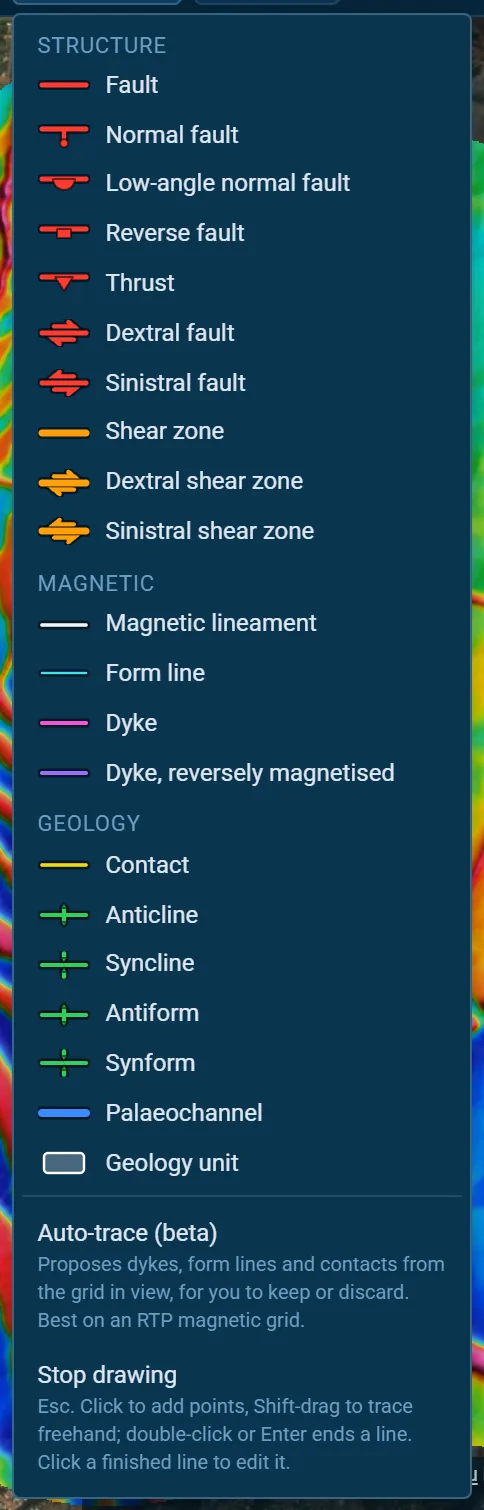
| Group | Types |
|---|---|
| Structure | Fault; normal fault (ball and bar on the downthrown side); low-angle normal fault (half-circles on the downthrown side); reverse fault (rectangles on the upthrown side); thrust (teeth on the hanging wall); dextral and sinistral faults (arrows showing the movement); shear zone, and dextral and sinistral shear zones |
| Magnetic | Magnetic lineament; form line (magnetic trend); dyke (a narrow magnetic high); dyke, reversely magnetised (a narrow, straight magnetic low) |
| Geology | Contact; anticline and syncline; antiform and synform, for folds whose younging is unknown; palaeochannel; geology unit (a polygon) |
The symbols follow the FGDC geologic map standard.
Drawing lines
- Click to add points; dragging pans the map as you go. Shift-drag traces a line freehand.
- Double-click or Enter ends the line (or End line in the draw bar). Backspace takes back the last point. Esc or Done stops drawing.
- New points snap to nearby points and lines, so a contact can end exactly on a fault.
- In the draw bar, set the line type and the confidence: Certain (solid), Inferred (dashed) or Speculative (dotted).
One-sided symbols (thrust teeth, reverse-fault rectangles, the normal fault's ball and bar, the half-circles) sit on the right of the direction you draw in. Draw a thrust with its hanging wall on your right, or press Flip afterwards. The arrows of a strike-slip fault show its movement whichever way you drew it.
Editing
Click a finished line or polygon, or its row in the Interpretation list, to select it. Then:
- drag its points, or drag the midpoint between two points to add one;
- select a point and press Delete to remove it (with no point selected, Delete removes the whole line);
- change its type or confidence in the draw bar, or Flip its direction.
Ctrl+Z undoes edits; Esc deselects.
Geology units
Choose Draw > Geology unit and type the unit's name in the draw bar. New polygons take that name, and polygons with the same name share a fill colour. Rename features and change a unit's colour in the Interpretation list, which also gives every line's length and every polygon's area.
Your interpretation is drawn above every layer and included in PNG exports. To keep it, save it (see Exporting your work); to carry on later, drop the GeoJSON back on the map. Lightbox recognises common type names from other packages (dike, thrust fault, right-lateral, paleochannel and so on) and confidences such as approximate and possible.
Auto-trace (beta)
Draw > Auto-trace (beta) proposes interpretation lines for the active grid in the area in view, worked out in your browser in a few seconds. It works best on a reduced-to-pole (RTP) magnetic grid.
It looks for:
- Dykes: straight, narrow highs.
- Form lines: highs that curve, or that sit in stacks of parallel lines, such as layering in a greenstone belt.
- Reversely magnetised dykes: long, dead straight lows. A demagnetised fault looks the same, so check these.
- Contacts: the edges of magnetic bodies.
It does not trace faults, or wide demagnetised corridors such as broad shear zones, which show only by their edges.
The proposed lines appear dotted (speculative) and named "(auto)". Drag Fewer / More to keep only the strongest of each kind, then Keep or Discard them. A single Ctrl+Z removes lines you kept.
Good to know:
- Up to about 1.3 million cells are traced at once. A larger view is traced at a coarser level, with a note suggesting you zoom in.
- It works out its own derivatives, so it declines derivative layers (anything named 1VD, 2VD or tilt), RGB images and terrain.
- It was tuned on Western Australian magnetics and has not yet been tested near the magnetic equator.
- Treat it as a first pass to check against the grid, not as an interpretation.
Profiles
Click Profile in the toolbar, then click two points on the map, A and B. The graph of the active grid along that line previews as you place B, follows you when you switch layers, and shows NoData as gaps.
The values are the stored cells under the line, so they match the readout. Hover over the graph to mark that point on the map. CSV saves the distance, x and y in the map's coordinates, longitude and latitude, and the value at each point.
Exporting your work
Everything is under Export in the toolbar:
| Export | What you get |
|---|---|
| Project file (.lightbox) | Everything open, in one file you can open again anywhere (Ctrl+S). See Project files. |
| Image of view (PNG) | The view at 1x, 2x or 4x screen resolution, with an optional legend strip (colour bar, sun position, scale bar). Your interpretation and the data credits are included. |
| Rendered GeoTIFF (RGBA) | A georeferenced picture of the active layer's whole extent at its own cell size, for a report figure or a GIS backdrop. It holds colours, not data values, and leaves out the basemap. |
| Share link | See Share links. |
| Visualisation preset (JSON) | The active layer's display settings, to apply to another grid. |
| Interpretation (GeoJSON) | Your lines and polygons in WGS 84 longitude and latitude. |
| Interpretation (shapefile) | A zip of shapefiles in the map's own coordinate system, with a matching .prj. |
The shapefile zip holds lines in interpretation.shp (fields NAME, TYPE, CONFIDENCE and LENGTH_M) and polygons in interpretation_units.shp (NAME, TYPE, COLOUR and AREA_M2). Unzip it and add the layers to QGIS or ArcGIS, then style the lines by TYPE. Lines keep the direction you drew them in, so their one-sided symbols come back the right way round when you load them into Lightbox again.
Presets: the Presets section in the right panel saves a layer's display settings in your browser under a name, applies them to another layer, and loads preset files.
Project files
Export > Project file, or Ctrl+S, saves everything open as one .lightbox file: the grids, their display settings, the view, the basemap, the compare mode and your interpretation. Drop it on Lightbox, or open it with Open, on any computer and it all comes back.
- Leave Include the grids ticked to put the grid files in it, so it opens anywhere on its own. Untick it for a small file holding only the settings and lines; when you open it, Lightbox asks for the grids, and each takes its saved settings as you open it.
- WA statewide data and terrain are loaded again, and 1VD and tilt layers worked out again, rather than stored.
- Opening a project replaces what is open; that work stays in your saved sessions.
- Together the grids in a project can be up to 3.9 GB; past that it is saved without them, and says so.
- A project is an ordinary zip: rename it to
.zipto take out its grids or itsproject.json.
Sending to the NextMaps map
For an interpretation over Western Australia, Send to NextMaps map in the Interpretation panel puts your lines and polygons in My Layers on the NextMaps map, over the tenements, applications and WAMEX reports. It is part of NextMaps Premium.
- Name the layer and press Send. Open on the map then opens the map in a new tab, with My Layers open and the map zoomed to your lines.
- Each line keeps its colour and its solid, dashed or dotted confidence. The map draws plain lines, so fault and fold symbols stay in Lightbox. Click a line on the map to see its name, type, confidence and length.
- Only the lines and polygons are sent, never your grids. Each send makes a new layer, which you can rename or delete in My Layers.
Share links
Export > Share link copies a link that holds the view, every layer's display settings, the basemap, the compare mode and your interpretation.
The link does not contain your grids. Whoever opens it is asked for the files it names (with an Open files button), and each grid takes its shared settings as it opens. Send the grids separately, or point the person to where they are. Links to the built-in samples load them directly.
All of this sits in the part of the link after the #, which browsers never send to a server.
On a phone or tablet
Lightbox works on touch screens:
- one finger pans, two fingers pinch to zoom, and a double tap zooms in;
- tap the map to pin a readout of the value at that point;
- the panels start closed: open them with the layers and settings buttons at the top right;
- the toolbar wraps onto two rows and its menus open as sheets.
It is built for a laptop or desktop, though, where the panels have room beside the map.
Your files and privacy
- Your grids are decoded inside your browser and never uploaded. NextMaps never receives them.
- The data Lightbox fetches is map tiles: the basemap and terrain from their providers, and NextMaps' WA grids if you add them. It may also fetch its full coordinate system table from NextMaps when a grid needs one that is not built in.
- Presets you save are kept in your browser, and so are your last few sessions, grids included, so you can pick up where you left off. They stay on this computer; Forget them under ? deletes them.
- Send to NextMaps map is the one thing that uploads your work, and only when you press it: your lines and polygons, never your grids, go to My Layers in your NextMaps account.
- Usage analytics record which tools get used, never file names, coordinates, extents or values. Session recording is off in Lightbox.
Keyboard shortcuts
| Keys | Action |
|---|---|
| Drag, arrow keys | Pan |
| Wheel, + and - | Zoom |
| F | Fit the map to the active layer |
| Shift + drag | Move the sun: drag towards where the light comes from |
| [ and ] | Turn the sun 5° (15° with Shift) |
| , and . | Lower and raise the sun |
| H | Shading on and off |
| S | Fit colours to view on and off (off locks the colours) |
| M | Multidirectional shading on and off |
| D | Drawing on and off |
| Double-click, Enter | End the line or polygon |
| Backspace, Ctrl + Z | Remove the last point, line or polygon |
| Esc | Stop drawing, or deselect |
| 1 to 9 | Select a layer (1 is the top) |
| V | Show or hide the active layer |
| I | Invert the colour ramp |
| C | Cycle compare: off, swipe, side by side |
| B | Basemap on and off |
| L and P | Hide and show the layers and settings panels |
| Ctrl + O | Open files |
| Ctrl + S | Save a project file |
| ? | Shortcuts and about |
Troubleshooting
"Not a grid", or an ER Mapper file will not open. An .ers file is only a header: open it together with its data file. For other messages, check the format is one Lightbox reads (see What Lightbox does not open).
The grid does not line up with the basemap or another grid. Its coordinate system is missing or wrong. See When a grid is in the wrong place, and check the CRS row under Info.
A quiet area looks flat and washed out. Turn on Fit to view (S) so the colours spread over the values on screen.
The grid looks blocky. You are zoomed in past its cell size, or Smooth (bilinear) is off under Display.
A big grid looks coarser than it should. It has more than 40 million cells and is showing an overview; the message and Info say at what scale. Crop it to your area to see every cell.
A control asks me to sign in. Everything beyond viewing needs a free NextMaps account. Sign in and carry on; your grids stay open.
My last session did not come back. Sessions are kept in the browser you used, so a different browser or computer, a private window, or cleared site data has none. Grids over 500 MB are remembered by name only: Restore asks for them.
There is no Send to NextMaps map button. It shows only on nextmaps.com.au, and only once your interpretation lies over Western Australia, where the map is.
Auto-trace says it cannot trace this layer. It needs a grid of values that is not itself a derivative. Run it on the RTP or TMI grid rather than its 1VD or tilt.
Something else? Email [email protected] and tell us what you opened and what you saw. Please do not attach confidential data.
NextMaps Lightbox. Open Lightbox · About Lightbox · [email protected]